> ## Documentation Index
> Fetch the complete documentation index at: https://kb.reflow.help/llms.txt
> Use this file to discover all available pages before exploring further.
# Licensing
Reflow requires a license to be deployed in production environments and/or sold as part of
commercial services. See the [product page](https://niagaramodules.com) for more information or to
purchase a license.
## Trial Mode
Installing Reflow without purchasing a license from NiagaraMods for your Host ID will result in the
service running in a free trial mode. In trial mode, Reflow limits the number of buildings, floor
plans, devices, and pages that you can add. It will also prompt the user each time they visit the
site with a popup box alerting them that the module is in free trial mode.
## Installing Your License
**If you purchased your license through a VYKON distributor or are using Reflow on a VYKON Office
Demo host**, your Reflow license is included with your license file from VYKON. No additional
licensing steps are necessary, just install the module and go!
If you received your license directly from the NiagaraMods website, please follow the installation
instructions below.
### Automatic License Installation
In most cases, Reflow installs and manages your license automatically. The ReflowService checks in
with the NiagaraMods licensing system on station startup, then approximately every 24 hours after
that.
Automatic installation and management requires internet access — your station must be able to
reach `api.niagaramodules.com` over HTTP/HTTPS.
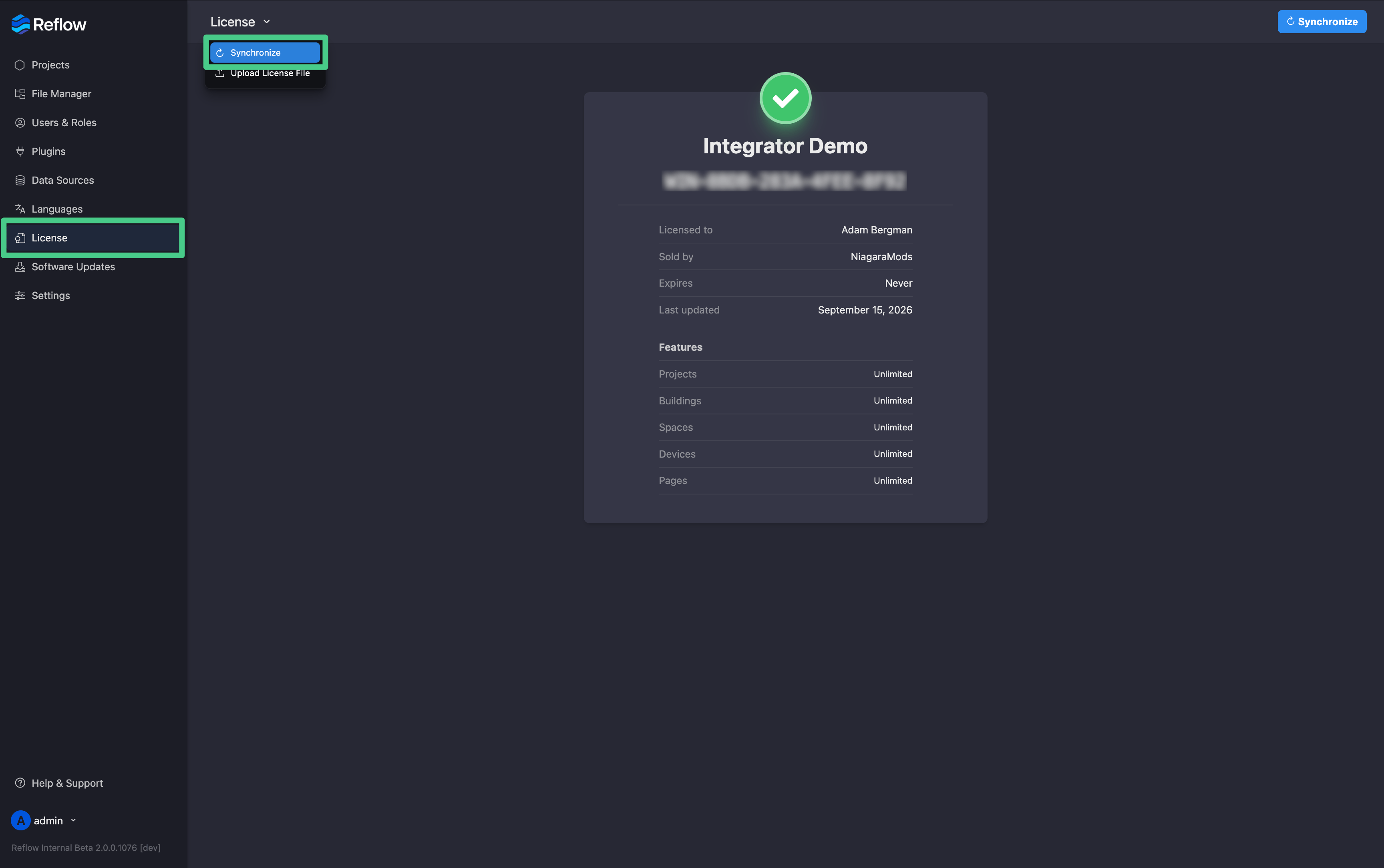
You can also trigger this manually at any time: open the Reflow Config View, go to **License**, and
click **Synchronize** to check for and install a license update immediately.
Manual License Installation
If your station doesn't have internet access — for example, because a VPN or firewall blocks
outbound connections — install your license file manually instead.
Don't install `niagaramods.license` using the Niagara License Manager in your host Platform.
Install it from the License settings in Reflow instead.
1. Download your `niagaramods.license` file from [NiagaraMods](https://niagaramodules.com/licenses),
or from the email it was sent in.
2. Open the Reflow Config View and go to **License**.
3. Drag the `niagaramods.license` file from your computer and drop it onto the page.
Reflow installs the license immediately and updates the License page with your new license details.
#### Manual installation demo video
The video below demonstrates the manual installation process.
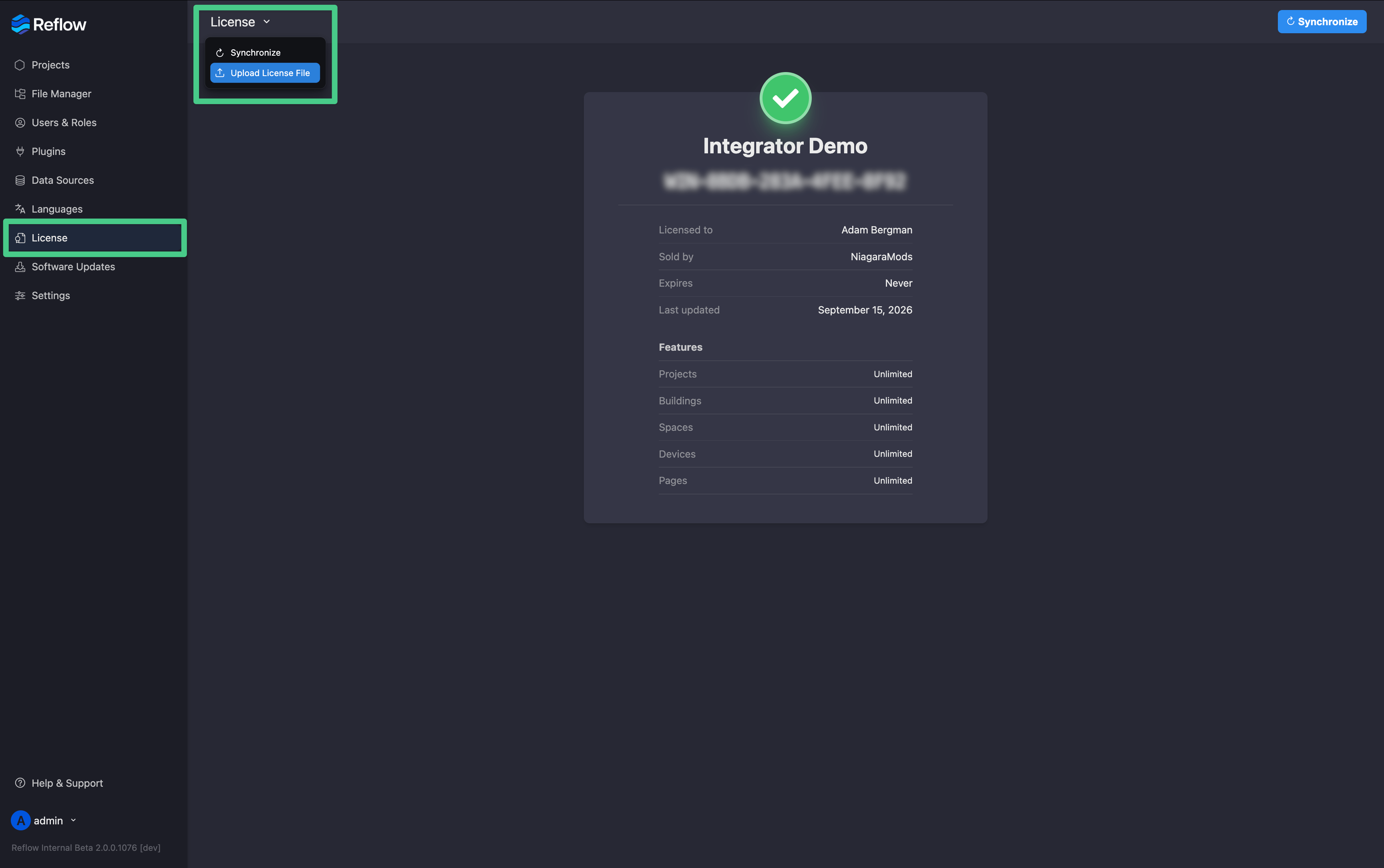
You can also upload a license file directly: open the **License** dropdown, select **Upload License
File**, then choose a `niagaramods.license` file from your computer.
 ### Viewing your License
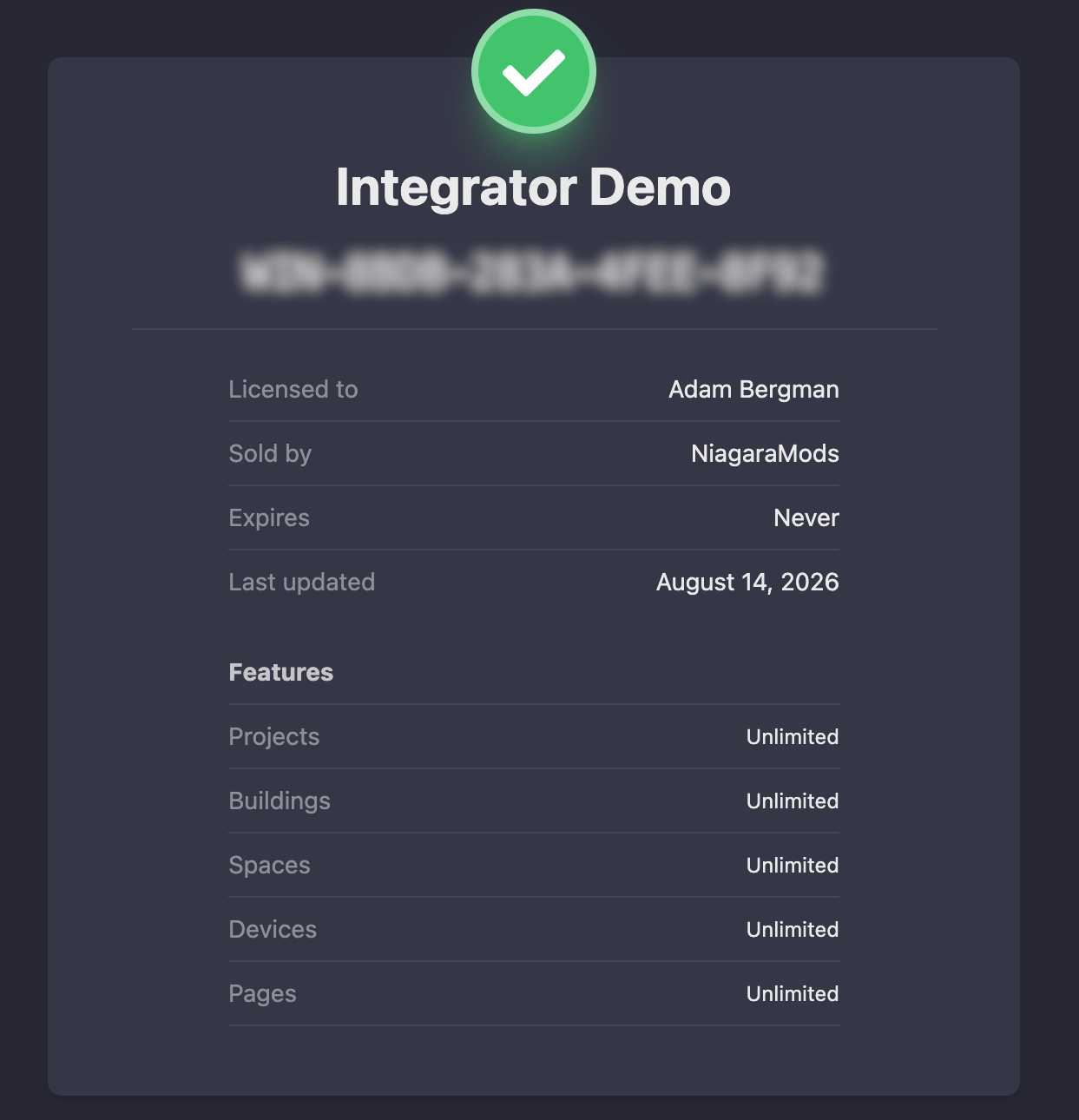
To view your license, open the Reflow Config View and go to **License**. This shows your license
details, including any limits on Buildings, Floor Plans, Equipment, and Pages.
### Viewing your License
To view your license, open the Reflow Config View and go to **License**. This shows your license
details, including any limits on Buildings, Floor Plans, Equipment, and Pages.
 ### License File Location
NiagaraMods license files live in the station file system under `Files > reflow > etc > license`.
The license file must be named `niagaramods.license`.
### License File Location
NiagaraMods license files live in the station file system under `Files > reflow > etc > license`.
The license file must be named `niagaramods.license`.
Troubleshooting
**If you purchased your license through a VYKON distributor or are using Reflow on a VYKON Office
Demo host**, reach out to your distributor directly if you experience any issues with licensing.
JACE Hardware
JACEs do not typically have DNS servers setup out of the box. This can cause an issue when Reflow
attempts to connect to the NiagaraMods license server and download your license. You can fix this by
[installing your license manually](#manual-license-installation) or by setting a DNS server in the
TCP/IP Configuration in your platform. If you are not sure which DNS servers to use, we recommend
using Google’s Public DNS Servers at the `8.8.8.8` and `8.8.4.4` IP addresses.
### Outbound Firewalls
If your host is on a network with an outbound firewall or other content filtering mechanisms, ensure
that an exception is made for the `api.niagaramodules.com` host over HTTP and HTTPS (ports 80 and
443 respectively).
## License Sizing
Reflow licenses scale based on the number of Devices added in the configuration.
### What Is a Device in Reflow
A device represents a piece of equipment in your network that will be visualized in Reflow. For
example each VAV, air handler, boiler, chiller, meter, door lock, etc. count as devices toward the
license total.
Devices in Reflow have dedicated equipment graphic pages and can be added to other content
automatically including in equipment groups (systems), summary views, and floor plans.
It’s important to note that you only need to license devices that will be displayed in Reflow, which
may not be all devices connected to your station. Only the devices that are added to Reflow will
count towards your license’s device limit. Connected Niagara controllers/stations, do not count
towards the device limit.
### Legacy Licenses
If your Reflow license was purchased before September 2022 it may be a legacy license. This includes
Reflow JACE, JACE Pro, and Supervisor licenses. These licenses are sized based on the number of
Buildings that are added to the Reflow configuration.
**Legacy licenses have been discontinued; new licenses of these types are no longer available for
purchase**. If you own an existing legacy license you can still add Buildings by logging in to your
account and visiting the License Manager on niagaramodules.com or contacting your Reflow
distributor.
## Features & Pricing
For more information on purchasing a license and the features included in licenses, please visit the
Reflow Product Page on the [NiagaraMods website](https://niagaramodules.com).
This documentation is built and hosted on [Mintlify](https://mintlify.com), a developer documentation platform.